
WebPit Blog
Learn about image optimization, web performance, and the latest news around the WebPit ecosystem.
Sep 27, 2026
•43 min read
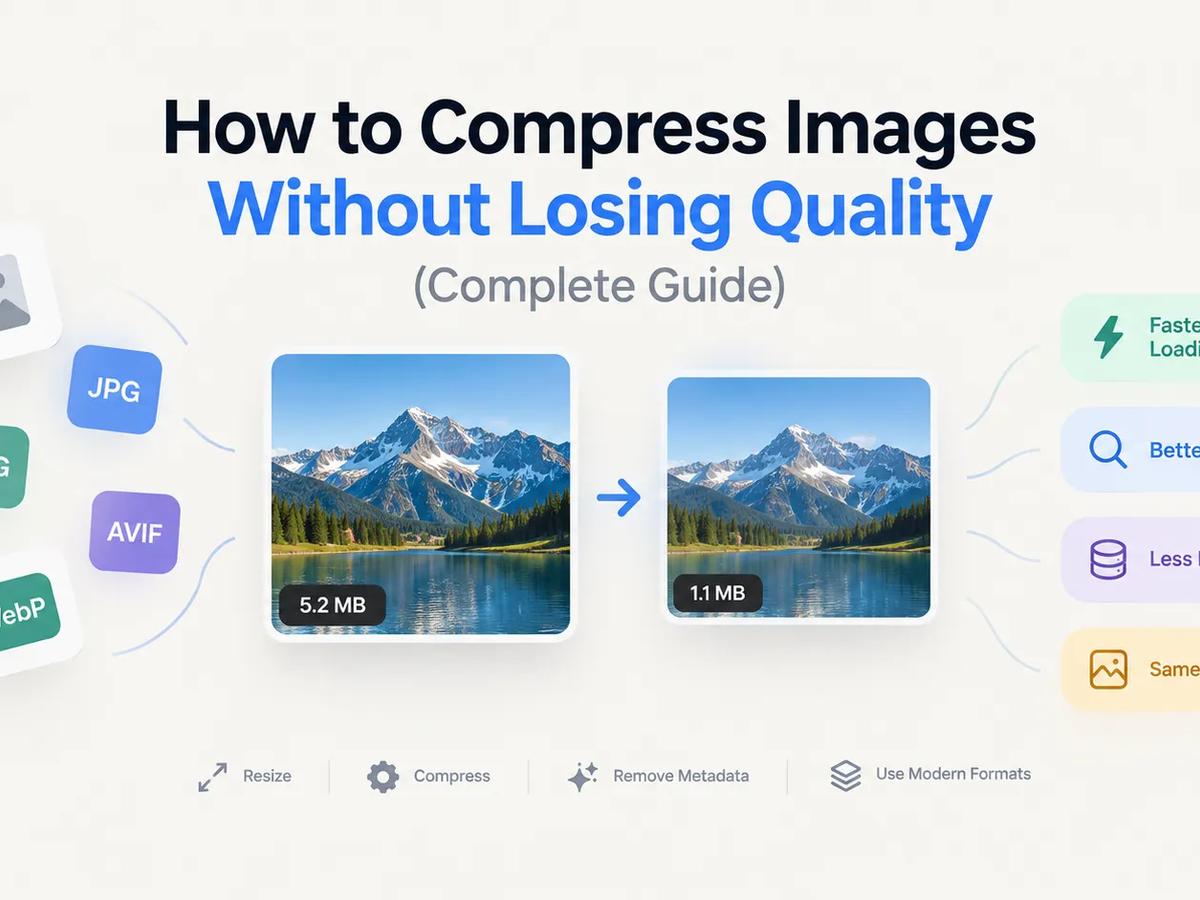
How to Compress Images Without Losing Quality (Complete SEO & Performance Guide)
Large images are the number one culprit behind slow-loading websites. In today’s web environment, they don’t just consume storage and increase bandwidth costs—they directly damage your Core Web Vitals and drag down your search engine rankings. With search engines and AI-driven search overviews heavily favoring lightning-fast, mobile-first experiences, optimizing your media is no longer optional. The good news? You don't have to sacrifice visual quality to achieve perfect page speed scores. Modern image compression algorithms and next-gen formats can often cut image sizes by 70% or more while keeping them visually indistinguishable from the original. In this guide, you'll learn how image compression works, which modern formats to choose, and the exact strategies to optimize images for maximum SEO impact. What Is Image Compression? Image compression is the process of reducing an image's file size while preserving as much visual data as possible. Smaller image files allow browsers to render pages faster, reduce server load, and dramatically improve the overall user experience. The ultimate goal of modern compression is finding the "sweet spot"—the exact point where file size is minimal, but the human eye cannot detect any loss in visual quality. Why Image Compression Matters for SEO in 2026 Compressing images offers benefits far beyond saving disk space. It is directly tied to your website’s search visibility. Passing Core Web Vitals (LCP): Google uses Core Web Vitals as a major ranking factor. The Largest Contentful Paint (LCP) metric measures how fast the main content of your page loads—which is almost always an image. Compressed images are the fastest way to get your LCP under the recommended 2.5 seconds. AI Search & Visual Discovery: Search Generative Experiences (SGE) and AI search tools rely heavily on rich, fast-loading media to populate their visual answers. Optimized images are more likely to be crawled, understood, and featured. Mobile-First Indexing: Over 60% of all web traffic comes from mobile devices, often on cellular networks. Search engines evaluate your site based on its mobile performance. Smaller images mean a faster experience for mobile users. Lower Bounce Rates & Higher Conversions: Visitors abandon slow websites. E-commerce studies consistently show that pages loading in under 2 seconds have significantly higher conversion rates and better user engagement. Reduced Bandwidth Costs: Every megabyte downloaded by a visitor costs server resources. Compressing images slashes data transfer, lowering CDN and hosting bills for high-traffic sites. How Image Compression Works There are two main categories of image compression, alongside modern AI-assisted techniques. Lossless Compression Lossless compression reduces file size by reorganizing data efficiently without removing any actual pixel data. The original image can be perfectly reconstructed. Best for: Logos, icons, charts, typography-heavy graphics, and medical imaging where zero data loss is acceptable. Lossy Compression Lossy compression permanently removes minor visual data—colors and details the human eye can't easily perceive—to achieve massive file size reductions. Best for: Photographs, complex web images, product galleries, and social media content. AI-Driven Compression (New) Modern tools now use machine learning to analyze the content of an image, applying heavier compression to out-of-focus backgrounds while preserving crisp details on the main subject (like text or faces). Which Image Format Should You Use? The web has moved past the days of relying solely on JPEG and PNG. Here is the modern hierarchy of image formats: AVIF (The New Standard) Developed by the Alliance for Open Media, AVIF is the current gold standard for web images. Pros: Produces files up to 50% smaller than WebP and 70% smaller than JPEG with identical quality; supports transparency and HDR. Cons: Encoding takes slightly more processing power, though it is now supported across all major browsers (Chrome, Safari, Firefox, Edge). WebP (The Reliable Fallback) Created by Google, WebP is now universally supported and serves as an excellent baseline. Pros: Smaller files than JPEG/PNG, supports transparency, broad compatibility. Cons: Not quite as efficient as AVIF. JPEG The legacy format for photographs. Role today: Use it strictly as a fallback for incredibly old browsers, or as a source file format before converting to AVIF/WebP. PNG & SVG PNG: Use only when you need lossless transparency for complex graphics, though WebP/AVIF often handle this better now. SVG: The absolute best choice for vector graphics like logos, icons, and UI elements. SVGs are code, making them infinitely scalable and incredibly lightweight. How to Compress Images Without Losing Quality (Best Practices) 1. Resize Dimensions and Use Responsive Images (srcset) Don't serve a 4000-pixel-wide image to a smartphone screen. Before compressing, ensure your image dimensions match their display size. SEO Tip: Use the HTML srcset attribute. This allows you to upload multiple sizes of the same image, and the user's browser will automatically download the smallest version that fits their screen. 2. Choose Next-Gen Formats via <picture> Tags Deliver the best format possible without breaking older browsers by using the HTML <picture> element: 3. Automate with Image CDNs Instead of manually compressing every image, modern web development relies on Image CDNs (like Cloudinary, Cloudflare Image Resizing, or Imgix). You upload your high-quality original, and the CDN automatically compresses, resizes, and converts the image to AVIF/WebP on the fly based on the user's device. 4. Adjust Compression Settings Intelligently If manually compressing, a quality setting between 75% and 80% usually provides the perfect intersection of tiny file size and indistinguishable visual quality for AVIF and WebP. 5. Clean Up Metadata (But Keep Copyrights) Cameras attach EXIF data (GPS coordinates, camera model, shutter speed) to images, bloating the file size. SEO Tip: Strip unnecessary EXIF data to save kilobytes, but retain IPTC copyright metadata to protect your visual assets from being scraped uncredited by AI models. 6. Implement Native Lazy Loading While not compression itself, adding loading="lazy" to your <img> tags tells the browser not to load images until the user scrolls down to them. This dramatically speeds up the initial page load and improves your Core Web Vitals. Common Image Optimization Mistakes Relying on PNG for Photographs: PNGs are uncompressed by nature. A photograph saved as a PNG can be 5x larger than an AVIF version. Forgetting Alt Text: Search engines can't "see" your images perfectly. Missing alt text hurts accessibility (a11y) and strips away valuable keyword context for Image SEO. Compressing an Already Compressed Image: Running a JPEG through a compressor multiple times causes "artifacting" (blocky, blurry edges). Always compress from your original high-res source file. Chasing the Smallest Possible File: A 15 KB image is useless if it looks blurry and unprofessional. Prioritize visual integrity—compress until you notice a drop in quality, then dial it back one notch. Frequently Asked Questions Does compressing images reduce quality? Not if done correctly. Lossless compression preserves 100% of the data. Modern lossy compression (like AVIF at 80% quality) removes data mathematically, but the visual difference is virtually impossible for the human eye to detect. Is AVIF better than WebP in 2026? Yes. AVIF consistently produces much smaller file sizes with better color retention (especially in gradients and text) than WebP. With near-universal browser support today, AVIF should be your primary format. Will image compression fix my Core Web Vitals? It is usually the most impactful step. If your LCP (Largest Contentful Paint) is failing, optimizing the "hero" image at the top of your page by resizing, compressing, and preloading it will usually solve the issue. Final Thoughts Image compression is no longer just a server-maintenance task—it is a foundational pillar of modern Technical SEO. By utilizing next-gen formats like AVIF, implementing responsive srcset delivery, and serving images through a modern CDN, you can drastically reduce file sizes without compromising visual quality. A few minutes spent optimizing your media pipeline will lead to faster loading pages, higher conversion rates, and a distinct advantage in search engine rankings.
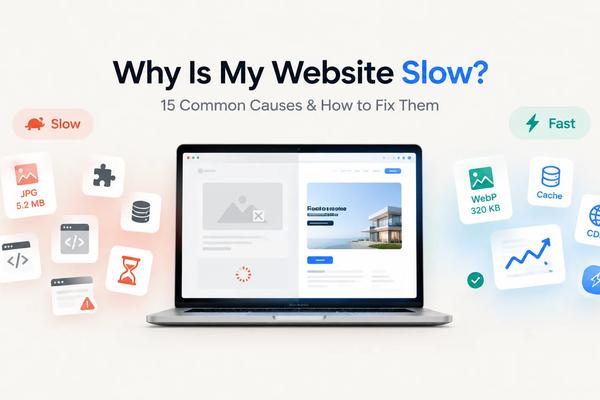
Why Is My Website Slow? 15 Common Causes (And How to Fix Them)
A slow website costs you more than just a few seconds. It can reduce search rankings, increase bounce rates, lower conversions, and frustrate visitors before they even see your content. The good news? Most website speed problems are fixable. You don't always need a new server or a complete redesign. Often, a few targeted improvements can make a dramatic difference. In this guide, we'll cover the 15 most common reasons websites become slow and what you can do to fix each one. 1. Images Are Too Large Oversized images are one of the biggest causes of slow websites. Uploading a 5 MB photo when a 200 KB version would look identical wastes bandwidth and slows every page load. How to fix it Resize images before uploading. Compress images without noticeable quality loss. Use modern formats like WebP or AVIF. Serve different image sizes for desktop and mobile. Tip: If you have hundreds of images, batch-converting them to WebP can reduce page size significantly while maintaining image quality. You can us tools like WebPit for converting images to webP 2. Too Many HTTP Requests Every image, CSS file, JavaScript file, font, and icon requires a separate request. The more requests your page makes, the longer it takes to load. How to fix it Remove unnecessary plugins and assets. Combine CSS and JavaScript files where appropriate. Use SVG icons instead of large icon libraries. Eliminate unused fonts. 3. Slow Web Hosting Even a perfectly optimized website will feel slow if it's hosted on an overloaded server. Common signs include: Slow response before the page starts loading Frequent downtime Slow performance during peak hours How to fix it Upgrade to better hosting. Consider managed hosting if you're using WordPress. Move to a VPS or cloud server if traffic has grown. 4. No Browser Caching Without caching, returning visitors must download every file again each time they visit. How to fix it Enable browser caching for: Images CSS JavaScript Fonts This allows visitors to reuse files already stored on their device. 5. Render-Blocking CSS and JavaScript If the browser has to download large CSS or JavaScript files before displaying anything, visitors stare at a blank page. How to fix it Minify CSS and JavaScript. Defer non-critical JavaScript. Inline critical CSS. Remove unused code. 6. Too Many WordPress Plugins Plugins are useful, but every plugin adds code. Some plugins load scripts on every page even when they're not needed. How to fix it Remove plugins you don't actively use. Replace multiple plugins with one lightweight alternative. Choose plugins that are actively maintained. Remember: quality matters more than quantity. 7. Unoptimized Database Over time, databases collect revisions, spam comments, expired data, and temporary files. This can slow down dynamic websites. How to fix it Regularly clean: Post revisions Spam comments Expired transients Old plugin data Optimize database tables periodically. 8. Too Many Third-Party Scripts Analytics, live chat, ad networks, social widgets, and tracking pixels all add extra work. Each external script introduces another dependency. How to fix it Ask yourself: Do I really need this script? Can I replace it with something lighter? Can it load after the page becomes interactive? 9. No Content Delivery Network (CDN) If your server is located in one country but visitors come from around the world, distance increases loading time. How to fix it Use a CDN to serve static files from locations closer to visitors. Popular CDN providers include: Cloudflare (excellent free plan and easy setup) Bunny.net (fast, affordable, and developer-friendly) Amazon CloudFront (ideal if you're already using AWS) Fastly (popular with large, high-traffic websites) Akamai (enterprise-grade global CDN) These services cache and deliver assets such as: Images CSS JavaScript Fonts For most small businesses, blogs, and portfolio websites, Cloudflare's free CDN is more than enough and can significantly improve load times while also adding security features like DDoS protection and SSL. 10. Videos Hosted on Your Own Server Uploading videos directly to your hosting account consumes bandwidth and slows pages dramatically. How to fix it Host videos on platforms like: YouTube Vimeo Then embed them instead of serving the files yourself. 11. Unused CSS and JavaScript Many themes include thousands of lines of code that your pages never actually use. Visitors still have to download it. How to fix it Remove: Unused CSS Unused JavaScript Unused fonts Legacy frameworks Smaller files mean faster pages. 12. Large Web Fonts Beautiful typography comes at a cost. Loading several font families with multiple weights can add hundreds of kilobytes. How to fix it Limit font families. Use fewer font weights. Prefer system fonts when possible. Preload important fonts. 13. Too Many Redirects Every redirect adds another request before visitors reach the final page. Multiple redirects create unnecessary delays. How to fix it Update internal links. Remove redirect chains. Link directly to the final destination. 14. Heavy Animations and Effects Large sliders, autoplay videos, animations, and complex visual effects may look impressive but often hurt performance. How to fix it Focus on usability over visual gimmicks. Simple pages usually feel faster and are easier to navigate. 15. You Haven't Measured Performance Many website owners guess what's slowing their site down instead of measuring it. Without data, optimization becomes trial and error. How to fix it Use tools such as: Google PageSpeed Insights Lighthouse GTmetrix WebPageTest Pay attention to metrics like: Largest Contentful Paint (LCP) Interaction to Next Paint (INP) Cumulative Layout Shift (CLS) These Core Web Vitals provide a clear picture of your site's real-world performance. Bonus Tips for a Faster Website Once you've fixed the major issues, these small improvements can provide additional gains: Enable Gzip or Brotli compression. Keep your CMS and plugins updated. Use lazy loading for below-the-fold images. Remove unnecessary page builders if possible. Regularly audit your website for unused assets. Small improvements add up over time. Frequently Asked Questions What is a good website loading speed? Aim for under 2 seconds. Anything under 3 seconds is generally acceptable, while longer load times can negatively impact user experience and conversions. Do images really affect website speed that much? Yes. Images are often the largest files on a webpage. Optimizing them can dramatically reduce page size and loading time. Will faster hosting fix every speed problem? No. Better hosting helps, but oversized images, poor code, excessive plugins, and unnecessary scripts can still slow your site. Is WebP better than JPEG? For most web images, yes. WebP typically delivers similar visual quality at a much smaller file size, making it an excellent choice for improving website performance. Read more here Final Thoughts A slow website is rarely caused by a single issue. More often, it's the result of several small inefficiencies that build up over time. Start by measuring your site's performance, then tackle the biggest problems first. Optimizing images, reducing unnecessary code, enabling caching, and choosing reliable hosting can dramatically improve loading speed without rebuilding your entire website. Even a one-second improvement can lead to happier visitors, better search visibility, and higher conversion rates.
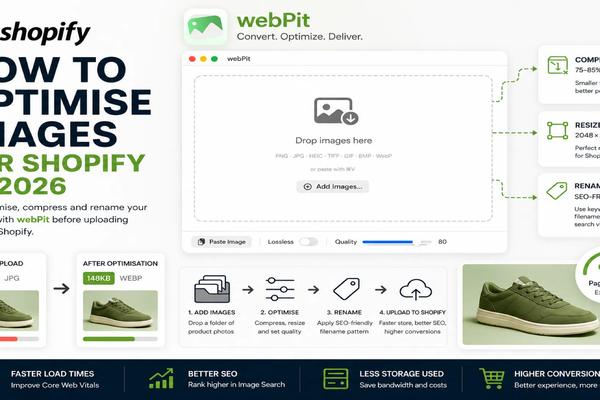
How to Optimize Images for Shopify in 2026
Shopify's CDN is good at compression. It is not good at fixing a 6,000×6,000px camera-roll export you uploaded straight from a product shoot. If your store still feels sluggish, the gap between "Shopify handles it automatically" and actually getting fast, search-friendly product pages is where most merchants lose page speed, and conversions, without realizing it. Shopify's Automatic WebP Serving, Explained Shopify's CDN now serves WebP — and AVIF where supported — to every compatible browser automatically, regardless of whether you uploaded a JPEG, PNG, or WebP file. In practice this covers almost all of today's traffic, so you don't need a theme app just to get modern-format delivery. Shopify detects the browser, picks the best format it can generate from your source file, and serves that variant instead of the original. That's the part most "shopify webp images" guides stop at. But automatic conversion only optimizes what you give it — it doesn't reduce dimensions, fix inconsistent crops, or apply aggressive compression, because it has to assume your original might need to look pixel-perfect at full zoom. Why You Should Still Pre-optimize Shopify's on-the-fly conversion is deliberately conservative. A 12MB PNG exported from Photoshop still gets uploaded, stored, and processed at full size before any WebP variant is generated — slowing your admin uploads, bloating your storage, and giving the CDN a worse starting point. Pre-optimising before upload means you control quality settings (75–85 is the sweet spot for WebP), resize to a sane master size (2048×2048px is the current Shopify standard), and ensure every image in a product gallery is consistent in dimensions and weight. This is also the difference between a store that scores well on Core Web Vitals and one that doesn't. Shopify page speed is increasingly a ranking and conversion factor, and "the CDN will handle it" isn't a substitute for shipping a 150KB file instead of a 1.5MB one in the first place. File Naming for Alt-Text SEO Before you touch alt text fields, fix your filenames. Shopify often falls back to the filename when alt text is missing, and Google's image search still weights filenames as a relevance signal. IMG_4821.jpg tells search engines nothing. mens-leather-chelsea-boots-tan.webp tells them exactly what's in the image and which query it should rank for. Rename in batches, before upload, using your target keyword plus the specific product attribute (colour, material, angle). Hyphens, not underscores or spaces. This single habit compounds across a catalogue of hundreds of SKUs in a way that's nearly impossible to fix retroactively once images are already attached to live product pages. Batch Workflow With webPit Before Uploading The practical version of all this: don't optimize images one at a time inside Shopify's admin. Do it in a batch pass before anything touches your store. A simple pre-upload pass with webPit looks like this — drop a folder of raw product shots in, batch-convert and compress everything to WebP at your target quality, and rename files in bulk with your keyword pattern, all before a single image reaches Shopify's admin. Point a watch folder at wherever your photographer or design team drops new shoots, and every new file gets optimized automatically without you touching it. Run new product photography through that pass before it ever reaches a product page, and you've solved file size, format, and naming in one step — instead of relying on Shopify's CDN to compensate for an unoptimized original.
Why We Built a Native macOS App (And Stayed Independent)
There's a moment every indie Mac developer faces: you've built something you're proud of, and then someone emails you saying, "your app says it's from an unidentified developer — is it safe?" That moment tells you a lot. It means people care enough to ask. And it means you owe them a real answer. This post is that answer. It's about why webPit is a native macOS app, why we chose to stay outside the Mac App Store, and — if you're staring down a Gatekeeper warning right now — exactly what to do about it. The Technical Case for Going Native The Menubar Agent Needed to Be Native One of webPit's most-used features is the menubar agent — a small persistent icon that lets you drop images for quick conversion without opening the main window. This sounds simple. It isn't, unless you're native. A native menubar app is a first-class macOS citizen: it can register for system events, respond instantly to drag-and-drop, and sit quietly in your menubar using effectively zero resources when idle. Achieving the same in Electron requires keeping a hidden browser window alive, which means the "lightweight background tool" you wanted is actually running a full web process at all times. For watch folders — where webPit monitors directories and automatically converts new images — native access to the macOS file system notification API (FSEvents) is orders of magnitude more efficient than polling-based approaches that non-native apps typically fall back on. SwiftUI and AppKit Integration webPit uses native macOS UI frameworks — the dialogs, the file pickers, the drag targets, the keyboard shortcuts all behave exactlyWhen we started building webPit, we had the same options every developer has. We could wrap a web app in Electron, ship a cross-platform framework, or go native. Here's why the choice was obvious. Memory and CPU: The Gap Is Real Electron apps carry an entire Chromium browser as their runtime. That's not an exaggeration — open Activity Monitor on your Mac and look at any Electron-based app. You'll routinely see 300–600 MB of RAM consumed before the app has done a single thing for you. Some top 1 GB during active use. webPit, as a native macOS app, sits at under 30 MB at idle. During a batch conversion of 200 images, it peaks in the 60–80 MB range and then comes back down. For an image processing utility that might run in the background all day — especially with watch folders active — that difference is the gap between a tool that quietly does its job and one that competes with your browser for resources. CPU behavior follows the same pattern. Native apps compile to machine code that runs directly on Apple Silicon or Intel. The OS scheduler treats them as first-class citizens. Electron apps run JavaScript interpreted through V8, with an extra abstraction layer that introduces latency and burns battery. On a MacBook, this is not hypothetical — you feel it in fan noise and hours of battery life. the way macOS users expect them to. System appearance modes (light/dark), accessibility settings, and trackpad gestures all work because the app speaks the same language as the operating system. This is harder to build. It took longer. But it means webPit feels like a Mac app, not a web app wearing a Mac costume. The $99 Question: Why We're Not on the Mac App Store Here is the honest version of this story. What the $99 Developer Program Buys You Apple's Developer Program costs $99/year. For that fee, you get: The ability to notarize your app (Apple's automated malware scan) The ability to code-sign your app so Gatekeeper passes it without warnings Access to the Mac App Store distribution channel TestFlight for beta distribution For many apps, especially ones with in-app subscriptions or broad consumer reach, this is a straightforward business decision. The distribution and trust signal is worth it. Why We Chose Not to Pay It — Yet We made a deliberate choice to start without the Apple Developer Program, and we want to be direct about why. First, the economics of early-stage indie development. webPit is a $8.99 one-time purchase. The developer fee is $99/year. That means we need to sell 12 copies just to recover the annual fee before we've covered any of our actual development costs. For a product that was just finding its footing, front-loading that cost felt like optimizing for appearances over fundamentals. Second, the App Store is not a neutral distribution channel. Apple takes 30% of every sale (or 15% under the Small Business Program). On an $8.99 app, that's a meaningful cut. More importantly, the App Store has strict sandboxing requirements that would limit some of webPit's core functionality — specifically, the watch folders and the persistent menubar agent. Apps in the App Store cannot freely monitor arbitrary directories the user hasn't explicitly granted access to in each session. Our watch folder feature would require significant architectural compromise or would simply not be possible in its current form. Third, we wanted to prove the product first. We believe in webPit. But we thought it was better to ship something real, get feedback from actual users, and grow into the developer program once we knew we had something worth the full infrastructure investment. What this means for you: The app you download from webpit.site is not on the Mac App Store and is not code-signed by Apple. That triggers a Gatekeeper warning. We'll explain exactly how to handle that below. What we want you to know: The app is safe. The source of the Gatekeeper warning is a business decision about distribution, not a quality or security issue. You can inspect the binary, run it through VirusTotal, or simply read on and follow the bypass instructions. Opening an Unsigned Mac App: Step-by-Step Gatekeeper Bypass macOS Gatekeeper is a security feature that checks whether apps are code-signed by a registered Apple Developer. When you download webPit, macOS will block it by default. Here's how to open it safely. A note before we start: Apple designed these steps intentionally. They require deliberate action from you — they're not something that happens by accident. That's a good thing. The steps below are the legitimate, Apple-sanctioned way to open apps you trust that didn't come from the App Store. Method 1: Right-Click to Open (Recommended for First Launch) This is the cleanest method and the one we recommend. Step 1. Download webPit.dmg from webpit.site and open it. Drag webPit to your Applications folder in the usual way. Step 2. Navigate to your Applications folder. Find webPit. Do not double-click it yet. Step 3. Right-click (or Control-click) on the webPit icon. A context menu will appear. Step 4. Click "Open" from the top of that context menu. This is a different action than double-clicking — it carries a trust signal that tells macOS you intentionally want to open this specific app. Step 5. A dialog will appear asking if you're sure you want to open an app from an unidentified developer. Click "Open" in that dialog. Step 6. webPit launches normally. You will not see this warning again for webPit — macOS remembers your choice. Method 2: System Settings (If You Already Got an Error) If you already tried to double-click webPit and got a hard block — a dialog that only offers "Move to Trash" — you'll need to clear that through System Settings. Step 1. Click the Apple menu → System Settings (macOS Ventura or later) or System Preferences (Monterey or earlier). Step 2. Go to Privacy & Security. Step 3. Scroll down to the Security section. You should see a message like: "webPit was blocked from use because it is not from an identified developer." Right below it, there will be an "Open Anyway" button. Step 4. Click "Open Anyway". Enter your Mac password if prompted. Step 5. A confirmation dialog will appear. Click "Open". webPit will now launch and macOS will remember your decision. You won't need to do this again. Method 3: Terminal (For Power Users) If you're comfortable with the Terminal, you can remove the quarantine flag that macOS places on downloaded files: After running this command, webPit will open normally with a double-click, no dialogs. Why Does This Warning Exist? (The Honest Explanation) macOS Gatekeeper was introduced to protect users from running software that Apple hasn't vetted. When an app is code-signed, Apple's servers verify that the developer's certificate is valid and that the app hasn't been tampered with since it was signed. When an app is unsigned, macOS has no cryptographic proof of origin. It doesn't mean the app is malicious — it means Apple hasn't vouched for the identity of the developer who built it. Many legitimate, well-loved indie Mac apps have been distributed unsigned for years. The steps above are how macOS lets you make the decision yourself. If Apple thought it was impossible for unsigned apps to be trustworthy, they wouldn't have built this override mechanism. We're telling you exactly what the warning means, exactly why it exists, and exactly how to get past it — because you deserve to understand what you're clicking through. What Being Independent Actually Means There's a version of "indie" that's just a marketing word. And then there's the version where one person (or a tiny team) builds something, self-distributes it, handles support emails personally, and ships updates based on actual user feedback rather than a product roadmap approved by committee. webPit is the second kind. When you buy webPit at $8.99, you're not funding a subscription billing cycle or a venture runway. You're buying the tool. You own it. It runs offline. There's no account, no telemetry, no license server checking in. When you email us with a bug or a feature request, a human who worked on the code reads it. That's not a promise we'd make if we were on a roadmap that required 10,000 MAU to justify any single line of work. Staying independent means we can make calls like: "let's add watch folders because power users asked for them," without those features needing to survive a quarterly planning process. The Roadmap for Trust Infrastructure We're being transparent about where we are, so here's where we're going. We intend to join the Apple Developer Program once the business justifies it. That means notarization, code-signing, and no more Gatekeeper warnings. We'll post an update here when that happens. Until then, the bypass instructions above are accurate, complete, and safe. And if you ever have any questions about what's in the app or how it works, our inbox is open. Summary webPit is a native macOS app because native apps are genuinely better for image processing workloads: less memory, better battery life, first-class OS integration. It's not on the Mac App Store because the App Store fee, the 30% cut, and the sandboxing restrictions are real costs that don't make sense for where we are right now. It shows a Gatekeeper warning because it's not code-signed — and the steps above will let you open it in under a minute. We built this tool because we needed it, we made it native because the alternatives were worse, and we stayed independent because we wanted to be honest with you about all of it. Download webPit — $8.99, one-time → Questions? Reach us at [email protected]. We read everything.
Squash App Alternatives for Mac: An Honest Comparison
You work in web development, UI/UX design, or digital marketing, you know that keeping your images compressed isn't optional—it’s a Core Web Vitals requirement. For years, Realmac Software's Squash has been a go-to desktop tool for macOS users looking to drag, drop, and shrink images down to size. But as web standards evolve and our optimization needs change, many developers and creators are hunting for a dedicated Squash app alternative for Mac. Whether you are tired of modern subscription models, looking for deeper background automation, or searching for the best webp converter mac 2026 has to offer to handle massive image pipelines, we’ve broken down the top native alternatives available today. Why Look for a Squash App Alternative? Squash is a fantastic, polished piece of software. It handles batch processing, lets you apply effects, and converts images smoothly. However, certain bottlenecks often lead professionals to seek alternatives: Subscription & Bundle Fatigue: Squash is frequently tied to broader software bundles or subscription networks. If you just want a single, focused utility that you own outright, subscription-heavy options feel bloated. Pipeline Automation: Manually opening an application and dragging files over every single time gets tedious when managing continuous asset updates for client projects. The Top Squash Alternatives for Mac Compared 1. WebPit (The Native Speed & Automation Specialist) If your primary workflow involves prepping imagery for modern web frameworks, WebPit stands out as a highly focused contender for the title of best webp converter mac 2026. Rather than trying to be a full photo-editing suite, it focuses purely on raw speed, asset pipelines, and absolute privacy. Key Edge: Watch Folders. Instead of manually dragging and dropping files, you can designate project folders on your Mac. The second you save an export from Photoshop, Figma, or Illustrator into that directory, WebPit automatically catches it, compresses it, and saves a optimized WebP version in the background. Performance: Built with full native multithreading support, meaning it leverages every available core of Apple Silicon (M1/M2/M3/M4 chips) to crush hundreds of files in parallel. Workflow Perks: Features a lightweight menubar agent so it stays entirely out of your way until you need to throw a file at it. Privacy: It processes images entirely on local machine. No Uploads to server, no AI, All on your mac. Pricing Model: Transparent, anti-subscription buy-once pricing. 2. ImageOptim (The Open-Source Purist) ImageOptim is a legendary name in the Mac developer ecosystem. It is completely free, open-source, and excellent at what it does: removing metadata and applying lossy/lossless compression algorithms. Key Edge: It uses seamless integration of backend tools like MozJPEG, AdvPNG, and Pngcrush to strip away every unnecessary byte of hidden data. The Catch: It feels dated. The interface is bare-bones, and it lacks modern workflow enhancements like automated folder watching or flexible file-renaming pipelines. If you just want a dead-simple, free tool to drop a couple of PNGs into, it’s perfect. If you need to scale, it requires more manual effort. 3. Permute (The Multi-Media Heavyweight) While Squash focuses primarily on graphics, Permute takes a broader approach by tackling image, audio, and video conversion all under one roof. Key Edge: Incredible versatility. If your work requires you to flip an image to WebP, turn a WAV file into an MP3, and transcode an MP4 to WebM all in the same afternoon, Permute handles it beautifully with hardware acceleration. The Catch: Because it’s a universal converter, it lacks the surgical, hyper-focused image pipeline automation—like deep folder monitoring or custom graphic rules—found in dedicated image optimization tools. The Verdict: Which One Should You Choose? The right Squash app alternative for Mac depends entirely on where your production bottlenecks are: Choose ImageOptim if you are on a tight budget, strictly need to strip metadata from standard formats, and don’t mind a utilitarian interface. Choose Permute if your daily work crosses video, audio, and images, and you prefer a single universal multi-tool over specialized apps. Choose WebPit if you are a web developer or designer explicitly looking for the best webp converter mac 2026 to automate your design production. Its background Watch Folders and multithreaded engine completely remove the friction of manual compression from your active client workflows.
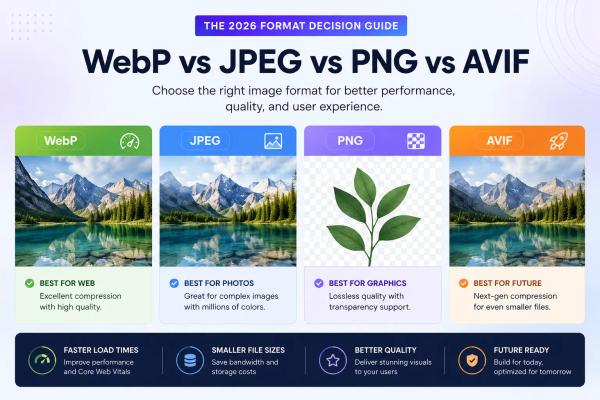
WebP vs JPEG vs PNG vs AVIF: The 2026 Format Decision Guide
I still get asked at least once a week which image format people should use in 2026. The answer has not changed as much as you might think, but the nuances matter more than ever. After optimizing thousands of websites and testing every major format across countless projects, I can tell you that picking the best image format web is not about finding a universal winner. It is about matching the right format to the right use case. Let me break down the real-world performance of WebP vs JPEG 2026 standards, plus where PNG and AVIF actually fit into your workflow. The Numbers Don't Lie: Format Comparison at a Glance JPEG: The Old Guard That Refuses to Die JPEG is not going anywhere, and honestly, it should not. When you need maximum compatibility across ancient browsers, legacy systems, or client environments you cannot control, JPEG remains the safe choice. The format handles photographic content reasonably well, and everyone on earth has software that can open it. But here is the problem I see constantly: people use JPEG for everything. Logos with transparency, screenshots with text, graphics with sharp edges. That is where JPEG falls apart. The compression artifacts destroy quality, and file sizes balloon when you try to maintain clarity. In the webp vs jpeg 2026 conversation, JPEG loses on efficiency every single time. You are looking at roughly thirty to forty percent larger files compared to modern alternatives at equivalent quality. PNG: When You Actually Need Lossless PNG files are brutal on page weight. In my testing, a typical screenshot with text and UI elements comes in at 450KB as PNG but only 120KB as WebP. That is seventy-three percent reduction. For logos with transparency, I regularly see PNG files at 800KB that compress to 85KB in WebP format. The math is simple.Use PNG in these specific scenarios: Archival storage where lossless is non-negotiable Images with text that must remain pixel-perfect Environments where WebP support cannot be guaranteed That is it. For everything else, PNG is overkill in 2026. WebP: The Practical Champion Here is why WebP format SEO continues to dominate my recommendations. Current browser support sits at 97.5% globally according to Can I Use data. That includes every modern version of Chrome, Firefox, Safari, and Edge. The format handles both lossy and lossless compression, supports full alpha transparency, and delivers consistent thirty to forty percent file size reductions compared to JPEG.I tracked performance across thirty client sites after migrating to WebP. The average results: Largest Contentful Paint improved by 0.8 seconds Total page weight decreased by 32% Mobile bounce rates dropped by 12% Core Web Vitals scores increased across the board When I run side-by-side tests, WebP consistently delivers the best balance of quality, size, and compatibility. It is the format I default to for ninety percent of web images. If you are asking yourself what is the best image format web for general use in 2026, the answer is WebP. AVIF: The Format That Could Not Quite Take Over AVIF vs WebP comparisons show AVIF achieving forty to fifty percent compression versus JPEG compared to WebP's thirty to thirty-five percent. That extra ten to fifteen percent sounds great on paper. In practice, the gains rarely justify the trade-offs. When I tested AVIF across real client projects, the marginal file size gains never justified the compatibility headaches and workflow complexity. Encoding times are significantly slower, which matters when you are processing thousands of images. Browser support gaps mean you still need fallbacks for Safari versions before 2023 and older mobile browsers. Quick Decision Guide: Which Format Should You Use? Stop overthinking this. Use this framework: Stop Guessing and Start Optimizing The format landscape has stabilized, and WebP sits at the center for good reason. But manually converting every image is tedious, and guessing quality settings wastes time. That is why I built my workflow around webPit. It removes the decision paralysis by auto-optimizing your images with smart defaults that preserve quality while minimizing file size. You can test it free at https://webpit.site for up to twenty conversions per day with adjustable quality controls, or grab the Mac app at https://webpit.site/download for unlimited batch processing with watch folders, bulk renaming, and zero manual work.Stop guessing formats and start shipping faster sites. Let webPit handle the optimization while you focus on building better experiences.

How to Batch Convert Images on Mac Without Losing Quality
If you have ever tried to convert a hundred images one by one on your Mac, you know the pain. It is tedious, error-prone, and frankly, a waste of your time. I have been optimizing images for over a decade, and the moment I discovered how to properly batch convert images on Mac, my workflow changed forever. The challenge is not just speed. It is maintaining quality while you do it. Let me show you how to get both. Why Quality Gets Destroyed in Batch Conversion Most people think batch conversion automatically means lower quality. That is only true if you use the wrong tools or settings. When you compress images in bulk, aggressive default settings can crush your file sizes while introducing visible artifacts. I have seen photographers lose client work because their batch process turned crisp RAW exports into muddy JPEGs. The goal is simple: reduce file size without visible degradation. This is especially critical when you bulk convert WebP Mac files, since WebP is already optimized for quality-to-size ratios. Mess up the settings, and you defeat the entire purpose. The Built-in Mac Options Are Not Enough Apple gives you Preview and Automator, and while they are decent for quick one-off tasks, they fall apart at scale. Preview forces you to manually export each image unless you write complex Automator scripts. Even then, you lack fine control over quality sliders, format-specific settings, or metadata handling. I used to rely on these native tools before realizing I was spending hours on what should take minutes. If you are serious about image optimization, you need dedicated software built for batch processing on macOS. What to Look for in a Mac Batch Converter After testing dozens of tools, I narrowed my requirements down to four essentials. First, true batch processing with no artificial limits on file count. Second, format flexibility, especially for modern formats like WebP, AVIF, and JPEG. Third, quality preservation through adjustable compression settings and lossless options. Fourth, automation features like watch folders that process images the moment they land in a directory. Most free tools give you one or two of these. Professional workflows demand all four. My Go-To Workflow for Batch Convert Images Mac Here is exactly how I handle large-scale image conversion on my Mac. I use webPit, a native macOS app designed specifically for this purpose. I set up a watch folder on my desktop called "To Convert." Any images I drop in there automatically get processed in the background. No clicking, no waiting, no manual exports. The app handles bulk conversion with zero limits, whether I am processing fifty images or five thousand. I can adjust the quality slider to find that sweet spot between file size and visual fidelity, and it preserves EXIF data when I need it. For WebP specifically, the bulk convert WebP Mac functionality is flawless, maintaining transparency and color accuracy better than any online converter I have tested. The Features That Actually Matter Beyond basic conversion, I rely on bulk renaming to keep my media library organized. When you are dealing with client shoots or e-commerce catalogs, having consistent file naming is non-negotiable. webPit lets me rename hundreds of files in seconds using custom patterns. The menu bar agent is another underrated feature. I keep it running quietly in the background, and it processes conversions without ever interrupting my work. At $8.99, it is a one-time purchase that has saved me countless hours. You can download it at https://webpit.site/download. Stop Wasting Time on Manual Conversion If you are still dragging images into Preview one at a time, you are working harder than you need to. Modern Mac workflows demand automation, speed, and quality preservation. Whether you need to batch convert images mac for a photography portfolio, optimize product photos for an online store, or prepare assets for web development, the right tool makes all the difference. Set up your watch folder, configure your quality settings once, and let your Mac do the heavy lifting. Grab webPit at https://webpit.site/download and reclaim the hours you used to spend on repetitive conversion tasks. Your future self will thank you.

The Ultimate Guide to Image SEO in 2026: Why WebP is Still King
I have spent the last eight years auditing websites, fixing bloated media libraries, and watching search algorithms evolve. If there is one thing that has stayed painfully consistent, it is this: slow images kill rankings. In 2026, image optimization is no longer a nice-to-have. It is a baseline requirement for anyone serious about organic visibility. And despite the constant hype around newer formats, WebP format SEO continues to dominate the landscape. Let me break down exactly why, and how you can actually use it to move the needle, including the tools I personally rely on like webPit. Why Images Still Dictate Your Core Web Vitals in 2026 Google's Core Web Vitals image optimization metrics have only gotten stricter. Largest Contentful Paint still weighs heavily on your homepage hero, your product galleries, and your blog featured images. I have audited dozens of sites where the only bottleneck keeping them from ranking on page one was a handful of uncompressed PNGs sitting above the fold. When you optimize images for SEO today, you are really optimizing for user patience. The algorithm tracks how fast your page feels, and nothing drags that down faster than a two-megabyte photograph pretending to be a thumbnail. This is why I always start any SEO audit with an image compression SEO review. WebP vs JPEG 2026: The Format Wars Are Over A few years ago, the industry debated whether AVIF or JPEG XL would finally dethrone legacy formats. We are well into 2026, and the answer is clear. WebP still wins on practicality. It delivers roughly thirty percent smaller file sizes than JPEG without visible quality loss, supports lossless compression, handles transparency better than PNG, and plays nicely with every major CMS and CDN out of the box. I have run side-by-side loading tests on identical sites, swapping JPEGs for WebPs, and consistently seen LCP drop by half a second. That is not a marginal tweak. That is a ranking shift. For quick conversions, I often point clients to the free web version of webPit at https://webpit.site. It handles up to twenty images a day with a simple quality slider, which is perfect for testing how different compression levels affect your visual fidelity before committing to a bulk workflow. The Real Image SEO Checklist I Still Use I keep my workflow simple because complexity never scales well. First, rename every file before upload. Descriptive, hyphenated filenames still matter for image compression SEO and contextual crawling. Second, write alt text that describes the image for accessibility and search intent, not keyword stuffing. Image alt text best practices have not changed, even if AI crawlers have gotten smarter at parsing visual content. Third, implement responsive image SEO by serving correctly sized files based on viewport. Stop making mobile users download desktop-width assets. Finally, pair WebP conversion with proper lazy loading for anything below the fold. You do not need a dozen plugins. One well-configured pipeline handles the rest. When I am processing large media libraries for clients, I use the Mac native version of webPit. The batch processing with no limits, watch folder automation, and bulk renaming features save me hours per project. It is a one-time $8.99 investment that pays for itself after a single client job. You can grab it at https://webpit.site/download. Next-Gen Image Formats and Why WebP Stays Ahead AVIF technically offers better compression, but adoption friction killed its momentum for most mid-market sites. Browser fallbacks, server configuration, and theme compatibility still favor WebP. When you look at image SEO 2026 trends, you will notice that Google, Cloudflare, and WordPress all default to WebP in their latest tooling. The ecosystem standardized around it because it balances quality, size, and developer overhead better than anything else. I have tested JPEG XL and AVIF in production, and the marginal gains rarely justify the maintenance cost. WebP remains the most reliable format for next-gen image optimization without breaking legacy workflows.If you are still serving JPEGs and PNGs across your site, you are leaving traffic on the table. Convert your media library to WebP, tighten your alt text strategy, and align your delivery with Core Web Vitals thresholds. The technical side of image optimization has never been more straightforward. Execute it properly, and you will see faster load times, better crawl efficiency, and a noticeable lift in organic rankings. I have seen it happen too many times to doubt it now. Start optimizing today, and let the format that actually works do the heavy lifting. If you want a tool that removes the friction from WebP conversion, check out webPit. The free web version at https://webpit.site is great for quick jobs, and the Mac app at https://webpit.site/download is what I use when I need power, speed, and zero compromises on image SEO 2026.

The Death of the Heavy Client: Why 2026 is the Year of Server-First UX
In an era where Core Web Vitals dictate rankings and users abandon sites loading over 2.5 seconds, the era of heavy client-side rendering (CSR) is ending. Server-first UX—prioritizing server-side rendering (SSR), streaming, and edge computation—is rising as the default for scalable web apps. This shift slashes JavaScript bundle sizes, accelerates Time to First Byte (TTFB), and future-proofs performance amid rising client device fragmentation. Tools like WebP.it (https://webpit.site) make it easy to compress image to webp right on the server, keeping frontends feather-light. 1. The Problem with Heavy Client Architectures Traditional CSR apps download massive JS bundles—often 2MB+—before rendering anything. Users stare at blank screens while hydration waterfalls delay interactivity, memory leaks crash tabs on low-end devices, and battery drain frustrates mobile users. 2026 data shows 70%+ of traffic from mobiles with 4GB RAM or less. Heavy clients exacerbate Cumulative Layout Shift (CLS) and Largest Contentful Paint (LCP) failures, tanking SEO and conversions. 2. Rise of Server-First UX: Core Principles Server-first renders on the server, streams HTML, and hydrates islands of interactivity only where needed. Key 2026 enablers: React Server Components (RSC) and partial hydration. Edge runtimes for <50ms latency. Streaming SSR via Suspense boundaries. Result? 90% smaller client payloads and instant first paints. 3. Image Optimization as the Perfect Server-First Use Case WebP.it (https://webpit.site) is your go-to app for jpg to webp, png to webp compressor, and more—converting images to WebP with 30% better compression than JPEG/PNG without quality loss. In server-first setups, WebP.it excels by handling heavy lifting server-side: Compress image to webp during SSR—no client bloat. Convert image to webp online free via simple API calls. Bulk webp converter for e-com product galleries. Free webp converter no upload for privacy-focused devs (process locally or edge). Real metrics: Serve via CDN: fetch('https://webpit.site/api/compress?format=webp') delivers optimized assets instantly. Ideal for Next.js, Shopify, or WordPress. 4. Why 2026 is the Tipping Point Platform maturity: WebAssembly + edge SSR standard. User expectations: Instant navigation or bust. SEO mandates: Google's 2026 algorithm favors server-rendered vitals. Cost efficiency: Serverless scales without waste—pair with free webp converter no upload for zero-friction. Tools like WebP.it enable this by offloading heavy lifting (compression) to servers, keeping clients feather-light. 5. Future-Proof Your Stack Adopt Feature-Sliced Design for clean boundaries. Use WebP.it as your bulk webp converter for Pinecone/Supabase-powered image search. Karachi agencies: premium services await. Key Takeaways Heavy clients fade in 2026; server-first UX dominates with SSR/streaming. WebP.it (https://webpit.site) enables compress image to webp, jpg to webp, png to webp compressor, bulk webp converter, and free webp converter no upload—slashing sizes 70%+. Integrate today for instant Next.js gains.
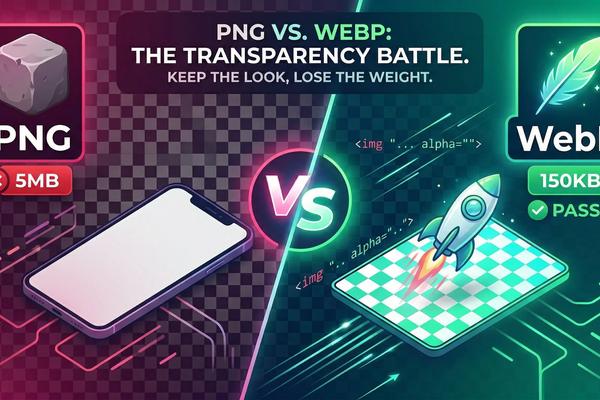
PNG vs. WebP: How to Keep Your Transparency Without the 5MB File Size
If you’ve ever uploaded a high-quality logo or a product image with a transparent background to your website, you’ve probably seen the "PNG Trap." You want the image to look crisp and clear against your site's background, so you save it as a PNG-24. Suddenly, that one image is 3MB, 5MB, or even 10MB. On a mobile device, that single image can take 5 seconds to load. In the world of web performance, that's an eternity. But what if you could keep that perfect transparency and cut the file size by 60% to 80%? Enter the WebP format. The Problem with PNGs in 2026 PNG (Portable Network Graphics) was designed in the 1990s. While it’s great for "lossless" quality and transparency, it wasn't built for the modern, fast-paced web. PNGs store a massive amount of data to ensure every pixel is perfect. For a print brochure, that's great. For a website being viewed on a 5G connection? It’s overkill. The result: High bounce rates because users get tired of waiting for your "heavy" images to appear. Why WebP is the "PNG Killer" WebP is a "multimode" format. This means it can handle both lossy compression (like a JPEG) and lossless transparency (like a PNG) in the same file. 1. Alpha Channel Support Just like PNG, WebP supports an alpha channel for transparency. Your logos will still look perfect on any background color or gradient. 2. Massive Size Savings On average, a transparent WebP file is 26% smaller than its PNG equivalent—and that’s if you use lossless settings. If you use lossy WebP (which still looks identical to the human eye), the savings can be as high as 80%. 3. Better Compression Ratios WebP uses "predictive coding" to look at neighboring pixels and predict the values, which allows it to shrink data much more efficiently than the older ZIP-based compression used in PNGs. How to Switch Without Losing Quality Many designers are afraid that switching to WebP will make their logos look "blurry" or "jagged." This only happens if you over-compress. The Golden Rule for WebP Transparency: Set Quality to 80-85%: This is the "sweet spot." You get the transparency of a PNG, but the file size of a small JPEG. Batch Convert: Don't do them one by one in Photoshop (which often requires a plugin). Use a dedicated browser tool. 🚀 Ready to Shrink Your Transparent Images? Don't let heavy PNGs slow down your site. Use WebPit to drag-and-drop your PNGs and instantly convert them to lightweight, transparent WebP files. No uploads. No server-side processing. Just speed. Convert PNG to WebP for Free Will WebP Work for My Users? A few years ago, developers worried about browser support. Today, that worry is gone. WebP is fully supported by: Google Chrome (Desktop & Mobile) Apple Safari (iOS & macOS) Microsoft Edge Mozilla Firefox If a user is browsing your site in 2026, their browser can read WebP. There is no longer a reason to stick with the "heavy" PNG format for web assets. Summary: The Quick Switch for Better UX Audit your site: Find any PNG over 500KB. Convert to WebP: Aim for a target size under 100KB. Re-upload: Watch your PageSpeed scores turn green. By making this one small change, you’re providing a faster, smoother experience for your customers—especially those on mobile devices.
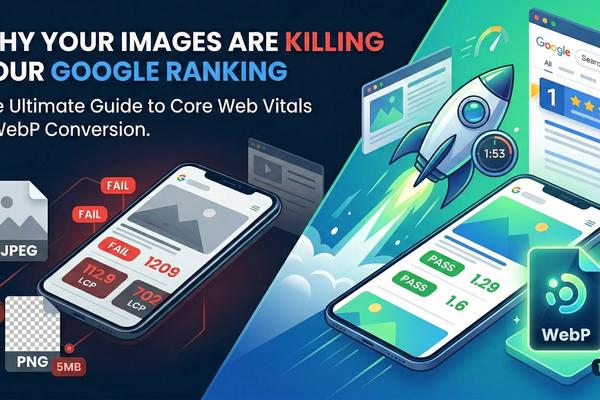
The Ultimate Guide to Core Web Vitals: Why Your Images Are Killing Your Google Ranking
The Ultimate Guide to Core Web Vitals: Why Your Images Are Killing Your Google Ranking You’ve spent weeks designing the perfect website, writing killer content, and setting up your product pages. You launch, expecting floodgates of organic traffic from Google, but… nothing. You check your Google Search Console, and you see it: a warning about Core Web Vitals. Specifically, your LCP (Largest Contentful Paint) is in the "Red." If you don’t know what that means, don’t panic. You aren't alone. But you must fix it. In 2026, Google doesn’t just rank sites based on keywords; it ranks them based on User Experience. If your site is slow, Google assumes your users are unhappy, and they will push you down the search results. The #1 culprit for a slow, "Red" Core Web Vitals score? Unoptimized Images. In this guide, we will break down exactly how images affect your ranking and show you the fastest, easiest way to fix it without losing image quality. What Are Core Web Vitals? Core Web Vitals are a set of specific factors that Google considers important in a webpage's overall user experience. They focus on three things: Loading Speed (LCP): How fast does the main content load? Interactivity (FID): How quickly can a user interact with the page (click buttons)? Visual Stability (CLS): Does the page jump around while loading? The Elephant in the Room: Largest Contentful Paint (LCP) LCP is the most common reason websites fail Core Web Vitals. It measures how long it takes for the largest element on the screen (usually a hero image or a main banner) to become visible to the user. If your hero image is a 3MB JPEG, your LCP score is going to be terrible. Google wants your LCP to be under 2.5 seconds. A massive, uncompressed image can easily push that to 10 seconds on a mobile connection. Why Old Image Formats (JPEG, PNG) Are Harming Your SEO For decades, JPEG and PNG were the kings of the internet. They served us well. But they are bulky. They were not designed for the modern, mobile-first web. PNG: Great for transparency, but file sizes are enormous. JPEG: Great for photos, but file sizes are still too large when trying to balance quality and speed. Every extra kilobyte your user has to download adds milliseconds to your loading time. Every millisecond costs you money. The Solution: Switch to WebP This is the easiest SEO win you will find all year. WebP is a modern image format developed by Google specifically for the web. It provides superior compression for images on the web, meaning you get much smaller file sizes while keeping your images looking crisp. The Benefits of WebP: 30% Smaller Files: On average, WebP images are 30% smaller than JPEGs of the same visual quality. Transparency Support: Like PNG, WebP supports transparent backgrounds, but at a fraction of the file size. Faster Loading (LCP Fix): Smaller files load faster. Faster loading means a better LCP score. A better LCP score means better Google rankings. 🛑 STOP: Don't Manually Convert Thousands of Images! You don’t need complex software or coding skills to modernize your website’s images. You can batch-convert and compress your entire image library in seconds using WebPit. It’s 100% Free, Instant, and Private (images never leave your computer). Try WebPit's Image Converter Now How to Optimize Your Images for Core Web Vitals (Step-by-Step) If you are ready to fix your LCP score and boost your rankings, follow this checklist: 1. Convert everything to WebP Every image on your site—from the hero banner to the tiny icons—should be WebP. All modern browsers fully support WebP. 2. Compress Wisely You don’t need "Maximum Quality" (100%) for web images. The human eye cannot tell the difference between a 100% quality image and an 80% quality image, but your file size will drop dramatically. WebPit allows you to adjust compression with a single slider. 3. Resize Your Images Before Uploading Never upload a 4000px-wide image if it's only going to appear 800px-wide on your blog. Resize your images to their actual display dimensions before converting them to WebP. 4. Implement Lazy Loading Lazy loading tells the browser: "Don't bother loading this image until the user scrolls down to it." This allows your main content (the LCP element) to load instantly without competing for bandwidth with images further down the page. Conclusion: A Faster Site = More Revenue Fixing your Core Web Vitals isn't just about pleasing Google's algorithm. It's about respecting your users' time. A site that loads instantly keeps visitors engaged, reduces bounce rates, and increases conversions (sales). Converting your images to WebP is the simplest, most impactful technical SEO improvement you can make today. Don't wait. Use a free tool like WebPit, optimize your images, and watch your rankings climb.