By Usman hyder
PNG vs. WebP: How to Keep Your Transparency Without the 5MB File Size
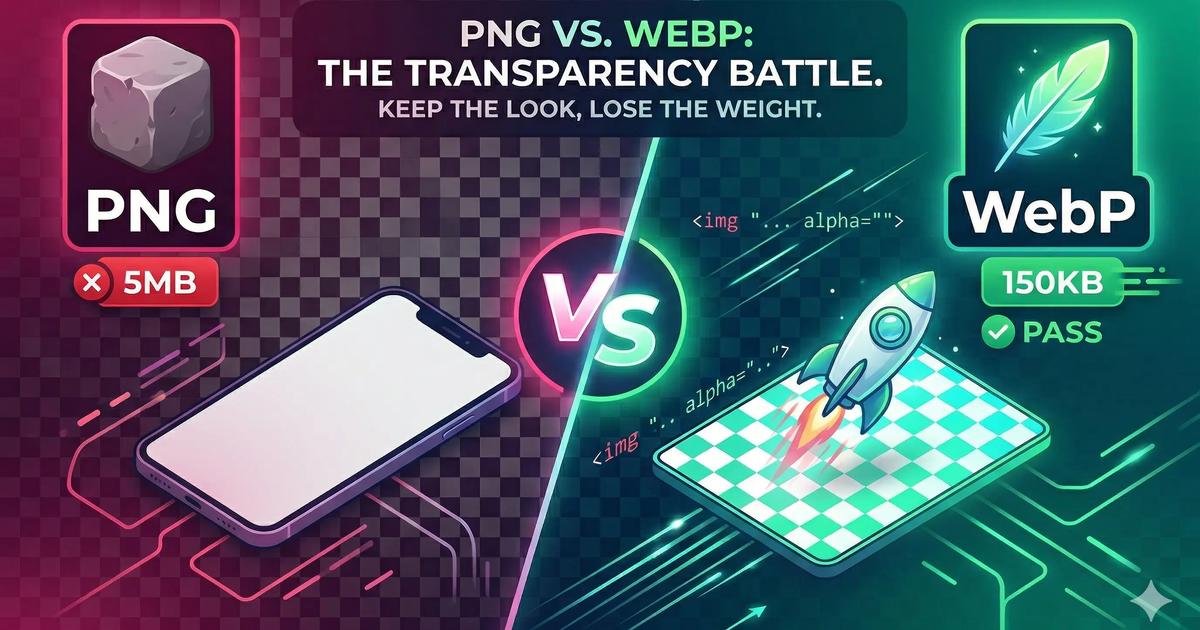
If you’ve ever uploaded a high-quality logo or a product image with a transparent background to your website, you’ve probably seen the "PNG Trap."
You want the image to look crisp and clear against your site's background, so you save it as a PNG-24. Suddenly, that one image is 3MB, 5MB, or even 10MB.
On a mobile device, that single image can take 5 seconds to load. In the world of web performance, that's an eternity.
But what if you could keep that perfect transparency and cut the file size by 60% to 80%? Enter the WebP format.
The Problem with PNGs in 2026
PNG (Portable Network Graphics) was designed in the 1990s. While it’s great for "lossless" quality and transparency, it wasn't built for the modern, fast-paced web.
PNGs store a massive amount of data to ensure every pixel is perfect. For a print brochure, that's great. For a website being viewed on a 5G connection? It’s overkill.
The result: High bounce rates because users get tired of waiting for your "heavy" images to appear.
Why WebP is the "PNG Killer"
WebP is a "multimode" format. This means it can handle both lossy compression (like a JPEG) and lossless transparency (like a PNG) in the same file.
1. Alpha Channel Support
Just like PNG, WebP supports an alpha channel for transparency. Your logos will still look perfect on any background color or gradient.
2. Massive Size Savings
On average, a transparent WebP file is 26% smaller than its PNG equivalent—and that’s if you use lossless settings. If you use lossy WebP (which still looks identical to the human eye), the savings can be as high as 80%.
3. Better Compression Ratios
WebP uses "predictive coding" to look at neighboring pixels and predict the values, which allows it to shrink data much more efficiently than the older ZIP-based compression used in PNGs.
How to Switch Without Losing Quality
Many designers are afraid that switching to WebP will make their logos look "blurry" or "jagged." This only happens if you over-compress.
The Golden Rule for WebP Transparency:
- Set Quality to 80-85%: This is the "sweet spot." You get the transparency of a PNG, but the file size of a small JPEG.
- Batch Convert: Don't do them one by one in Photoshop (which often requires a plugin). Use a dedicated browser tool.
🚀 Ready to Shrink Your Transparent Images?
Don't let heavy PNGs slow down your site. Use WebPit to drag-and-drop your PNGs and instantly convert them to lightweight, transparent WebP files.
No uploads. No server-side processing. Just speed.
Convert PNG to WebP for Free
Will WebP Work for My Users?
A few years ago, developers worried about browser support. Today, that worry is gone.
WebP is fully supported by:
- Google Chrome (Desktop & Mobile)
- Apple Safari (iOS & macOS)
- Microsoft Edge
- Mozilla Firefox
If a user is browsing your site in 2026, their browser can read WebP. There is no longer a reason to stick with the "heavy" PNG format for web assets.
Summary: The Quick Switch for Better UX
Audit your site: Find any PNG over 500KB.
Convert to WebP: Aim for a target size under 100KB.
Re-upload: Watch your PageSpeed scores turn green.
By making this one small change, you’re providing a faster, smoother experience for your customers—especially those on mobile devices.
Get WebPit for Mac — unlimited power, one‑time purchase
Batch processing · Watch folders · Menu bar agent · Clipboard conversion · Native speed