By Usman hyder
How to Batch Convert Images on Mac Without Losing Quality

If you have ever tried to convert a hundred images one by one on your Mac, you know the pain. It is tedious, error-prone, and frankly, a waste of your time. I have been optimizing images for over a decade, and the moment I discovered how to properly batch convert images on Mac, my workflow changed forever. The challenge is not just speed. It is maintaining quality while you do it. Let me show you how to get both.
Why Quality Gets Destroyed in Batch Conversion
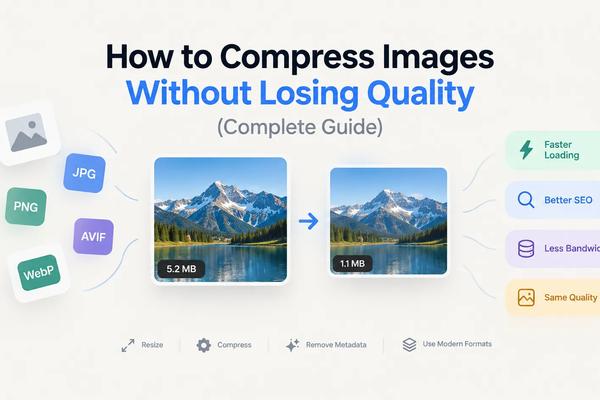
Most people think batch conversion automatically means lower quality. That is only true if you use the wrong tools or settings. When you compress images in bulk, aggressive default settings can crush your file sizes while introducing visible artifacts. I have seen photographers lose client work because their batch process turned crisp RAW exports into muddy JPEGs. The goal is simple: reduce file size without visible degradation. This is especially critical when you bulk convert WebP Mac files, since WebP is already optimized for quality-to-size ratios. Mess up the settings, and you defeat the entire purpose.
The Built-in Mac Options Are Not Enough
Apple gives you Preview and Automator, and while they are decent for quick one-off tasks, they fall apart at scale. Preview forces you to manually export each image unless you write complex Automator scripts. Even then, you lack fine control over quality sliders, format-specific settings, or metadata handling. I used to rely on these native tools before realizing I was spending hours on what should take minutes. If you are serious about image optimization, you need dedicated software built for batch processing on macOS.
What to Look for in a Mac Batch Converter
After testing dozens of tools, I narrowed my requirements down to four essentials. First, true batch processing with no artificial limits on file count. Second, format flexibility, especially for modern formats like WebP, AVIF, and JPEG. Third, quality preservation through adjustable compression settings and lossless options. Fourth, automation features like watch folders that process images the moment they land in a directory. Most free tools give you one or two of these. Professional workflows demand all four.
My Go-To Workflow for Batch Convert Images Mac
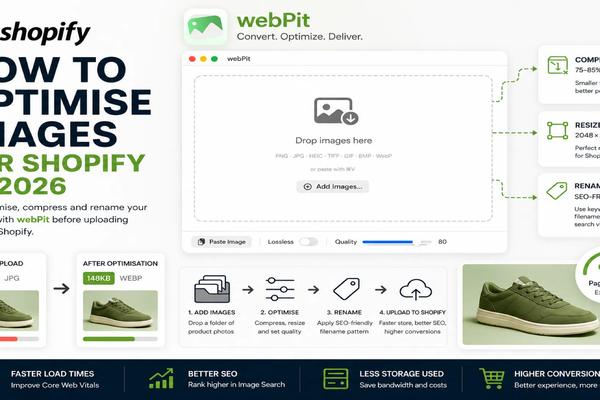
Here is exactly how I handle large-scale image conversion on my Mac. I use webPit, a native macOS app designed specifically for this purpose. I set up a watch folder on my desktop called "To Convert." Any images I drop in there automatically get processed in the background. No clicking, no waiting, no manual exports. The app handles bulk conversion with zero limits, whether I am processing fifty images or five thousand. I can adjust the quality slider to find that sweet spot between file size and visual fidelity, and it preserves EXIF data when I need it. For WebP specifically, the bulk convert WebP Mac functionality is flawless, maintaining transparency and color accuracy better than any online converter I have tested.
The Features That Actually Matter
Beyond basic conversion, I rely on bulk renaming to keep my media library organized. When you are dealing with client shoots or e-commerce catalogs, having consistent file naming is non-negotiable. webPit lets me rename hundreds of files in seconds using custom patterns. The menu bar agent is another underrated feature. I keep it running quietly in the background, and it processes conversions without ever interrupting my work. At $8.99, it is a one-time purchase that has saved me countless hours. You can download it at https://webpit.site/download.
Stop Wasting Time on Manual Conversion
If you are still dragging images into Preview one at a time, you are working harder than you need to. Modern Mac workflows demand automation, speed, and quality preservation. Whether you need to batch convert images mac for a photography portfolio, optimize product photos for an online store, or prepare assets for web development, the right tool makes all the difference. Set up your watch folder, configure your quality settings once, and let your Mac do the heavy lifting. Grab webPit at https://webpit.site/download and reclaim the hours you used to spend on repetitive conversion tasks. Your future self will thank you.
Get WebPit for Mac — unlimited power, one‑time purchase
Batch processing · Watch folders · Menu bar agent · Clipboard conversion · Native speed