WebPit Logo
Back to blog
June 17, 2026

By Usman hyder

How to Optimize Images for Shopify in 2026
How to Optimize Images for Shopify in 2026

Shopify's CDN is good at compression. It is not good at fixing a 6,000×6,000px camera-roll export you uploaded straight from a product shoot. If your store still feels sluggish, the gap between "Shopify handles it automatically" and actually getting fast, search-friendly product pages is where most merchants lose page speed, and conversions, without realizing it.

Shopify's Automatic WebP Serving, Explained

Shopify's CDN now serves WebP — and AVIF where supported — to every compatible browser automatically, regardless of whether you uploaded a JPEG, PNG, or WebP file. In practice this covers almost all of today's traffic, so you don't need a theme app just to get modern-format delivery. Shopify detects the browser, picks the best format it can generate from your source file, and serves that variant instead of the original.

That's the part most "shopify webp images" guides stop at. But automatic conversion only optimizes what you give it — it doesn't reduce dimensions, fix inconsistent crops, or apply aggressive compression, because it has to assume your original might need to look pixel-perfect at full zoom.

Why You Should Still Pre-optimize

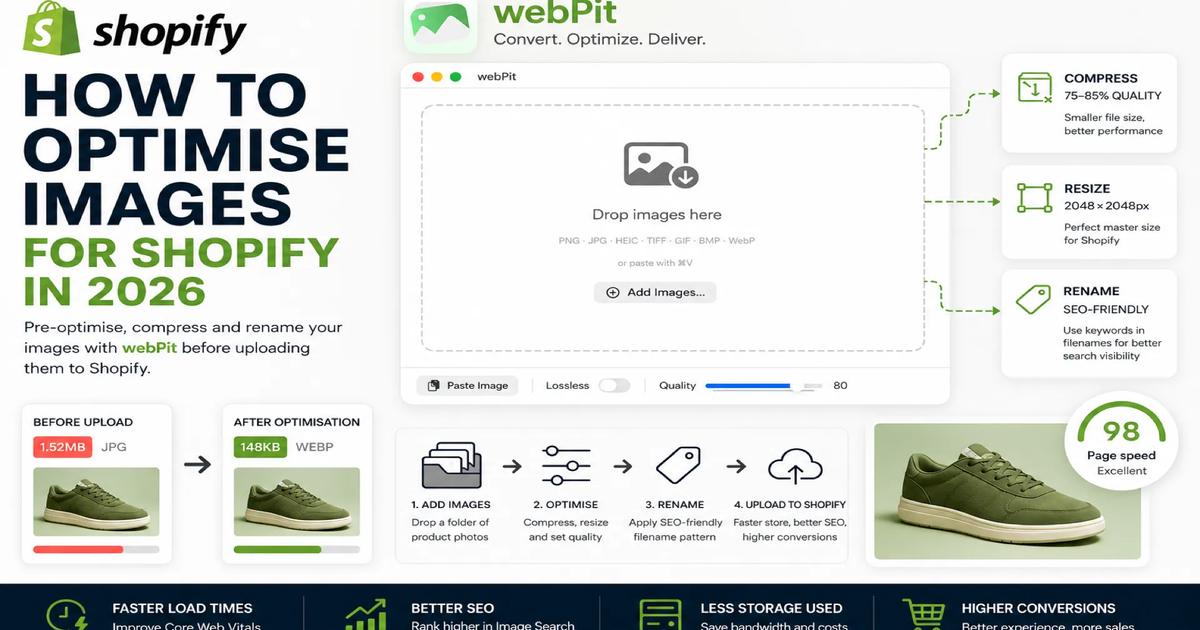
Shopify's on-the-fly conversion is deliberately conservative. A 12MB PNG exported from Photoshop still gets uploaded, stored, and processed at full size before any WebP variant is generated — slowing your admin uploads, bloating your storage, and giving the CDN a worse starting point. Pre-optimising before upload means you control quality settings (75–85 is the sweet spot for WebP), resize to a sane master size (2048×2048px is the current Shopify standard), and ensure every image in a product gallery is consistent in dimensions and weight.

This is also the difference between a store that scores well on Core Web Vitals and one that doesn't. Shopify page speed is increasingly a ranking and conversion factor, and "the CDN will handle it" isn't a substitute for shipping a 150KB file instead of a 1.5MB one in the first place.

File Naming for Alt-Text SEO

Before you touch alt text fields, fix your filenames. Shopify often falls back to the filename when alt text is missing, and Google's image search still weights filenames as a relevance signal. IMG_4821.jpg tells search engines nothing. mens-leather-chelsea-boots-tan.webp tells them exactly what's in the image and which query it should rank for.

Rename in batches, before upload, using your target keyword plus the specific product attribute (colour, material, angle). Hyphens, not underscores or spaces. This single habit compounds across a catalogue of hundreds of SKUs in a way that's nearly impossible to fix retroactively once images are already attached to live product pages.

Batch Workflow With webPit Before Uploading

The practical version of all this: don't optimize images one at a time inside Shopify's admin. Do it in a batch pass before anything touches your store.

A simple pre-upload pass with webPit looks like this — drop a folder of raw product shots in, batch-convert and compress everything to WebP at your target quality, and rename files in bulk with your keyword pattern, all before a single image reaches Shopify's admin. Point a watch folder at wherever your photographer or design team drops new shoots, and every new file gets optimized automatically without you touching it.

Run new product photography through that pass before it ever reaches a product page, and you've solved file size, format, and naming in one step — instead of relying on Shopify's CDN to compensate for an unoptimized original.

Get WebPit for Mac — unlimited power, one‑time purchase

Batch processing · Watch folders · Menu bar agent · Clipboard conversion · Native speed
Download Now — $8.99

Related Articles

How to Compress Images Without Losing Quality (Complete SEO & Performance Guide)

How to Compress Images Without Losing Quality (Complete SEO & Performance Guide)

Large images are the number one culprit behind slow-loading websites. In today’s web environment, they don’t just consume storage and increase bandwidth costs—they directly damage your Core Web Vitals and drag down your search engine rankings. With search engines and AI-driven search overviews heavily favoring lightning-fast, mobile-first experiences, optimizing your media is no longer optional. The good news? You don't have to sacrifice visual quality to achieve perfect page speed scores. Modern image compression algorithms and next-gen formats can often cut image sizes by 70% or more while keeping them visually indistinguishable from the original. In this guide, you'll learn how image compression works, which modern formats to choose, and the exact strategies to optimize images for maximum SEO impact. What Is Image Compression? Image compression is the process of reducing an image's file size while preserving as much visual data as possible. Smaller image files allow browsers to render pages faster, reduce server load, and dramatically improve the overall user experience. The ultimate goal of modern compression is finding the "sweet spot"—the exact point where file size is minimal, but the human eye cannot detect any loss in visual quality. Why Image Compression Matters for SEO in 2026 Compressing images offers benefits far beyond saving disk space. It is directly tied to your website’s search visibility. Passing Core Web Vitals (LCP): Google uses Core Web Vitals as a major ranking factor. The Largest Contentful Paint (LCP) metric measures how fast the main content of your page loads—which is almost always an image. Compressed images are the fastest way to get your LCP under the recommended 2.5 seconds. AI Search & Visual Discovery: Search Generative Experiences (SGE) and AI search tools rely heavily on rich, fast-loading media to populate their visual answers. Optimized images are more likely to be crawled, understood, and featured. Mobile-First Indexing: Over 60% of all web traffic comes from mobile devices, often on cellular networks. Search engines evaluate your site based on its mobile performance. Smaller images mean a faster experience for mobile users. Lower Bounce Rates & Higher Conversions: Visitors abandon slow websites. E-commerce studies consistently show that pages loading in under 2 seconds have significantly higher conversion rates and better user engagement. Reduced Bandwidth Costs: Every megabyte downloaded by a visitor costs server resources. Compressing images slashes data transfer, lowering CDN and hosting bills for high-traffic sites. How Image Compression Works There are two main categories of image compression, alongside modern AI-assisted techniques. Lossless Compression Lossless compression reduces file size by reorganizing data efficiently without removing any actual pixel data. The original image can be perfectly reconstructed. Best for: Logos, icons, charts, typography-heavy graphics, and medical imaging where zero data loss is acceptable. Lossy Compression Lossy compression permanently removes minor visual data—colors and details the human eye can't easily perceive—to achieve massive file size reductions. Best for: Photographs, complex web images, product galleries, and social media content. AI-Driven Compression (New) Modern tools now use machine learning to analyze the content of an image, applying heavier compression to out-of-focus backgrounds while preserving crisp details on the main subject (like text or faces). Which Image Format Should You Use? The web has moved past the days of relying solely on JPEG and PNG. Here is the modern hierarchy of image formats: AVIF (The New Standard) Developed by the Alliance for Open Media, AVIF is the current gold standard for web images. Pros: Produces files up to 50% smaller than WebP and 70% smaller than JPEG with identical quality; supports transparency and HDR. Cons: Encoding takes slightly more processing power, though it is now supported across all major browsers (Chrome, Safari, Firefox, Edge). WebP (The Reliable Fallback) Created by Google, WebP is now universally supported and serves as an excellent baseline. Pros: Smaller files than JPEG/PNG, supports transparency, broad compatibility. Cons: Not quite as efficient as AVIF. JPEG The legacy format for photographs. Role today: Use it strictly as a fallback for incredibly old browsers, or as a source file format before converting to AVIF/WebP. PNG & SVG PNG: Use only when you need lossless transparency for complex graphics, though WebP/AVIF often handle this better now. SVG: The absolute best choice for vector graphics like logos, icons, and UI elements. SVGs are code, making them infinitely scalable and incredibly lightweight. How to Compress Images Without Losing Quality (Best Practices) 1. Resize Dimensions and Use Responsive Images (srcset) Don't serve a 4000-pixel-wide image to a smartphone screen. Before compressing, ensure your image dimensions match their display size. SEO Tip: Use the HTML srcset attribute. This allows you to upload multiple sizes of the same image, and the user's browser will automatically download the smallest version that fits their screen. 2. Choose Next-Gen Formats via <picture> Tags Deliver the best format possible without breaking older browsers by using the HTML <picture> element: 3. Automate with Image CDNs Instead of manually compressing every image, modern web development relies on Image CDNs (like Cloudinary, Cloudflare Image Resizing, or Imgix). You upload your high-quality original, and the CDN automatically compresses, resizes, and converts the image to AVIF/WebP on the fly based on the user's device. 4. Adjust Compression Settings Intelligently If manually compressing, a quality setting between 75% and 80% usually provides the perfect intersection of tiny file size and indistinguishable visual quality for AVIF and WebP. 5. Clean Up Metadata (But Keep Copyrights) Cameras attach EXIF data (GPS coordinates, camera model, shutter speed) to images, bloating the file size. SEO Tip: Strip unnecessary EXIF data to save kilobytes, but retain IPTC copyright metadata to protect your visual assets from being scraped uncredited by AI models. 6. Implement Native Lazy Loading While not compression itself, adding loading="lazy" to your <img> tags tells the browser not to load images until the user scrolls down to them. This dramatically speeds up the initial page load and improves your Core Web Vitals. Common Image Optimization Mistakes Relying on PNG for Photographs: PNGs are uncompressed by nature. A photograph saved as a PNG can be 5x larger than an AVIF version. Forgetting Alt Text: Search engines can't "see" your images perfectly. Missing alt text hurts accessibility (a11y) and strips away valuable keyword context for Image SEO. Compressing an Already Compressed Image: Running a JPEG through a compressor multiple times causes "artifacting" (blocky, blurry edges). Always compress from your original high-res source file. Chasing the Smallest Possible File: A 15 KB image is useless if it looks blurry and unprofessional. Prioritize visual integrity—compress until you notice a drop in quality, then dial it back one notch. Frequently Asked Questions Does compressing images reduce quality? Not if done correctly. Lossless compression preserves 100% of the data. Modern lossy compression (like AVIF at 80% quality) removes data mathematically, but the visual difference is virtually impossible for the human eye to detect. Is AVIF better than WebP in 2026? Yes. AVIF consistently produces much smaller file sizes with better color retention (especially in gradients and text) than WebP. With near-universal browser support today, AVIF should be your primary format. Will image compression fix my Core Web Vitals? It is usually the most impactful step. If your LCP (Largest Contentful Paint) is failing, optimizing the "hero" image at the top of your page by resizing, compressing, and preloading it will usually solve the issue. Final Thoughts Image compression is no longer just a server-maintenance task—it is a foundational pillar of modern Technical SEO. By utilizing next-gen formats like AVIF, implementing responsive srcset delivery, and serving images through a modern CDN, you can drastically reduce file sizes without compromising visual quality. A few minutes spent optimizing your media pipeline will lead to faster loading pages, higher conversion rates, and a distinct advantage in search engine rankings.

Read more
Why Is My Website Slow? 15 Common Causes (And How to Fix Them)

Why Is My Website Slow? 15 Common Causes (And How to Fix Them)

A slow website costs you more than just a few seconds. It can reduce search rankings, increase bounce rates, lower conversions, and frustrate visitors before they even see your content. The good news? Most website speed problems are fixable. You don't always need a new server or a complete redesign. Often, a few targeted improvements can make a dramatic difference. In this guide, we'll cover the 15 most common reasons websites become slow and what you can do to fix each one. 1. Images Are Too Large Oversized images are one of the biggest causes of slow websites. Uploading a 5 MB photo when a 200 KB version would look identical wastes bandwidth and slows every page load. How to fix it Resize images before uploading. Compress images without noticeable quality loss. Use modern formats like WebP or AVIF. Serve different image sizes for desktop and mobile. Tip: If you have hundreds of images, batch-converting them to WebP can reduce page size significantly while maintaining image quality. You can us tools like WebPit for converting images to webP 2. Too Many HTTP Requests Every image, CSS file, JavaScript file, font, and icon requires a separate request. The more requests your page makes, the longer it takes to load. How to fix it Remove unnecessary plugins and assets. Combine CSS and JavaScript files where appropriate. Use SVG icons instead of large icon libraries. Eliminate unused fonts. 3. Slow Web Hosting Even a perfectly optimized website will feel slow if it's hosted on an overloaded server. Common signs include: Slow response before the page starts loading Frequent downtime Slow performance during peak hours How to fix it Upgrade to better hosting. Consider managed hosting if you're using WordPress. Move to a VPS or cloud server if traffic has grown. 4. No Browser Caching Without caching, returning visitors must download every file again each time they visit. How to fix it Enable browser caching for: Images CSS JavaScript Fonts This allows visitors to reuse files already stored on their device. 5. Render-Blocking CSS and JavaScript If the browser has to download large CSS or JavaScript files before displaying anything, visitors stare at a blank page. How to fix it Minify CSS and JavaScript. Defer non-critical JavaScript. Inline critical CSS. Remove unused code. 6. Too Many WordPress Plugins Plugins are useful, but every plugin adds code. Some plugins load scripts on every page even when they're not needed. How to fix it Remove plugins you don't actively use. Replace multiple plugins with one lightweight alternative. Choose plugins that are actively maintained. Remember: quality matters more than quantity. 7. Unoptimized Database Over time, databases collect revisions, spam comments, expired data, and temporary files. This can slow down dynamic websites. How to fix it Regularly clean: Post revisions Spam comments Expired transients Old plugin data Optimize database tables periodically. 8. Too Many Third-Party Scripts Analytics, live chat, ad networks, social widgets, and tracking pixels all add extra work. Each external script introduces another dependency. How to fix it Ask yourself: Do I really need this script? Can I replace it with something lighter? Can it load after the page becomes interactive? 9. No Content Delivery Network (CDN) If your server is located in one country but visitors come from around the world, distance increases loading time. How to fix it Use a CDN to serve static files from locations closer to visitors. Popular CDN providers include: Cloudflare (excellent free plan and easy setup) Bunny.net (fast, affordable, and developer-friendly) Amazon CloudFront (ideal if you're already using AWS) Fastly (popular with large, high-traffic websites) Akamai (enterprise-grade global CDN) These services cache and deliver assets such as: Images CSS JavaScript Fonts For most small businesses, blogs, and portfolio websites, Cloudflare's free CDN is more than enough and can significantly improve load times while also adding security features like DDoS protection and SSL. 10. Videos Hosted on Your Own Server Uploading videos directly to your hosting account consumes bandwidth and slows pages dramatically. How to fix it Host videos on platforms like: YouTube Vimeo Then embed them instead of serving the files yourself. 11. Unused CSS and JavaScript Many themes include thousands of lines of code that your pages never actually use. Visitors still have to download it. How to fix it Remove: Unused CSS Unused JavaScript Unused fonts Legacy frameworks Smaller files mean faster pages. 12. Large Web Fonts Beautiful typography comes at a cost. Loading several font families with multiple weights can add hundreds of kilobytes. How to fix it Limit font families. Use fewer font weights. Prefer system fonts when possible. Preload important fonts. 13. Too Many Redirects Every redirect adds another request before visitors reach the final page. Multiple redirects create unnecessary delays. How to fix it Update internal links. Remove redirect chains. Link directly to the final destination. 14. Heavy Animations and Effects Large sliders, autoplay videos, animations, and complex visual effects may look impressive but often hurt performance. How to fix it Focus on usability over visual gimmicks. Simple pages usually feel faster and are easier to navigate. 15. You Haven't Measured Performance Many website owners guess what's slowing their site down instead of measuring it. Without data, optimization becomes trial and error. How to fix it Use tools such as: Google PageSpeed Insights Lighthouse GTmetrix WebPageTest Pay attention to metrics like: Largest Contentful Paint (LCP) Interaction to Next Paint (INP) Cumulative Layout Shift (CLS) These Core Web Vitals provide a clear picture of your site's real-world performance. Bonus Tips for a Faster Website Once you've fixed the major issues, these small improvements can provide additional gains: Enable Gzip or Brotli compression. Keep your CMS and plugins updated. Use lazy loading for below-the-fold images. Remove unnecessary page builders if possible. Regularly audit your website for unused assets. Small improvements add up over time. Frequently Asked Questions What is a good website loading speed? Aim for under 2 seconds. Anything under 3 seconds is generally acceptable, while longer load times can negatively impact user experience and conversions. Do images really affect website speed that much? Yes. Images are often the largest files on a webpage. Optimizing them can dramatically reduce page size and loading time. Will faster hosting fix every speed problem? No. Better hosting helps, but oversized images, poor code, excessive plugins, and unnecessary scripts can still slow your site. Is WebP better than JPEG? For most web images, yes. WebP typically delivers similar visual quality at a much smaller file size, making it an excellent choice for improving website performance. Read more here Final Thoughts A slow website is rarely caused by a single issue. More often, it's the result of several small inefficiencies that build up over time. Start by measuring your site's performance, then tackle the biggest problems first. Optimizing images, reducing unnecessary code, enabling caching, and choosing reliable hosting can dramatically improve loading speed without rebuilding your entire website. Even a one-second improvement can lead to happier visitors, better search visibility, and higher conversion rates.

Read more
Why We Built a Native macOS App (And Stayed Independent)

Why We Built a Native macOS App (And Stayed Independent)

There's a moment every indie Mac developer faces: you've built something you're proud of, and then someone emails you saying, "your app says it's from an unidentified developer — is it safe?" That moment tells you a lot. It means people care enough to ask. And it means you owe them a real answer. This post is that answer. It's about why webPit is a native macOS app, why we chose to stay outside the Mac App Store, and — if you're staring down a Gatekeeper warning right now — exactly what to do about it. The Technical Case for Going Native The Menubar Agent Needed to Be Native One of webPit's most-used features is the menubar agent — a small persistent icon that lets you drop images for quick conversion without opening the main window. This sounds simple. It isn't, unless you're native. A native menubar app is a first-class macOS citizen: it can register for system events, respond instantly to drag-and-drop, and sit quietly in your menubar using effectively zero resources when idle. Achieving the same in Electron requires keeping a hidden browser window alive, which means the "lightweight background tool" you wanted is actually running a full web process at all times. For watch folders — where webPit monitors directories and automatically converts new images — native access to the macOS file system notification API (FSEvents) is orders of magnitude more efficient than polling-based approaches that non-native apps typically fall back on. SwiftUI and AppKit Integration webPit uses native macOS UI frameworks — the dialogs, the file pickers, the drag targets, the keyboard shortcuts all behave exactlyWhen we started building webPit, we had the same options every developer has. We could wrap a web app in Electron, ship a cross-platform framework, or go native. Here's why the choice was obvious. Memory and CPU: The Gap Is Real Electron apps carry an entire Chromium browser as their runtime. That's not an exaggeration — open Activity Monitor on your Mac and look at any Electron-based app. You'll routinely see 300–600 MB of RAM consumed before the app has done a single thing for you. Some top 1 GB during active use. webPit, as a native macOS app, sits at under 30 MB at idle. During a batch conversion of 200 images, it peaks in the 60–80 MB range and then comes back down. For an image processing utility that might run in the background all day — especially with watch folders active — that difference is the gap between a tool that quietly does its job and one that competes with your browser for resources. CPU behavior follows the same pattern. Native apps compile to machine code that runs directly on Apple Silicon or Intel. The OS scheduler treats them as first-class citizens. Electron apps run JavaScript interpreted through V8, with an extra abstraction layer that introduces latency and burns battery. On a MacBook, this is not hypothetical — you feel it in fan noise and hours of battery life. the way macOS users expect them to. System appearance modes (light/dark), accessibility settings, and trackpad gestures all work because the app speaks the same language as the operating system. This is harder to build. It took longer. But it means webPit feels like a Mac app, not a web app wearing a Mac costume. The $99 Question: Why We're Not on the Mac App Store Here is the honest version of this story. What the $99 Developer Program Buys You Apple's Developer Program costs $99/year. For that fee, you get: The ability to notarize your app (Apple's automated malware scan) The ability to code-sign your app so Gatekeeper passes it without warnings Access to the Mac App Store distribution channel TestFlight for beta distribution For many apps, especially ones with in-app subscriptions or broad consumer reach, this is a straightforward business decision. The distribution and trust signal is worth it. Why We Chose Not to Pay It — Yet We made a deliberate choice to start without the Apple Developer Program, and we want to be direct about why. First, the economics of early-stage indie development. webPit is a $8.99 one-time purchase. The developer fee is $99/year. That means we need to sell 12 copies just to recover the annual fee before we've covered any of our actual development costs. For a product that was just finding its footing, front-loading that cost felt like optimizing for appearances over fundamentals. Second, the App Store is not a neutral distribution channel. Apple takes 30% of every sale (or 15% under the Small Business Program). On an $8.99 app, that's a meaningful cut. More importantly, the App Store has strict sandboxing requirements that would limit some of webPit's core functionality — specifically, the watch folders and the persistent menubar agent. Apps in the App Store cannot freely monitor arbitrary directories the user hasn't explicitly granted access to in each session. Our watch folder feature would require significant architectural compromise or would simply not be possible in its current form. Third, we wanted to prove the product first. We believe in webPit. But we thought it was better to ship something real, get feedback from actual users, and grow into the developer program once we knew we had something worth the full infrastructure investment. What this means for you: The app you download from webpit.site is not on the Mac App Store and is not code-signed by Apple. That triggers a Gatekeeper warning. We'll explain exactly how to handle that below. What we want you to know: The app is safe. The source of the Gatekeeper warning is a business decision about distribution, not a quality or security issue. You can inspect the binary, run it through VirusTotal, or simply read on and follow the bypass instructions. Opening an Unsigned Mac App: Step-by-Step Gatekeeper Bypass macOS Gatekeeper is a security feature that checks whether apps are code-signed by a registered Apple Developer. When you download webPit, macOS will block it by default. Here's how to open it safely. A note before we start: Apple designed these steps intentionally. They require deliberate action from you — they're not something that happens by accident. That's a good thing. The steps below are the legitimate, Apple-sanctioned way to open apps you trust that didn't come from the App Store. Method 1: Right-Click to Open (Recommended for First Launch) This is the cleanest method and the one we recommend. Step 1. Download webPit.dmg from webpit.site and open it. Drag webPit to your Applications folder in the usual way. Step 2. Navigate to your Applications folder. Find webPit. Do not double-click it yet. Step 3. Right-click (or Control-click) on the webPit icon. A context menu will appear. Step 4. Click "Open" from the top of that context menu. This is a different action than double-clicking — it carries a trust signal that tells macOS you intentionally want to open this specific app. Step 5. A dialog will appear asking if you're sure you want to open an app from an unidentified developer. Click "Open" in that dialog. Step 6. webPit launches normally. You will not see this warning again for webPit — macOS remembers your choice. Method 2: System Settings (If You Already Got an Error) If you already tried to double-click webPit and got a hard block — a dialog that only offers "Move to Trash" — you'll need to clear that through System Settings. Step 1. Click the Apple menu → System Settings (macOS Ventura or later) or System Preferences (Monterey or earlier). Step 2. Go to Privacy & Security. Step 3. Scroll down to the Security section. You should see a message like: "webPit was blocked from use because it is not from an identified developer." Right below it, there will be an "Open Anyway" button. Step 4. Click "Open Anyway". Enter your Mac password if prompted. Step 5. A confirmation dialog will appear. Click "Open". webPit will now launch and macOS will remember your decision. You won't need to do this again. Method 3: Terminal (For Power Users) If you're comfortable with the Terminal, you can remove the quarantine flag that macOS places on downloaded files: After running this command, webPit will open normally with a double-click, no dialogs. Why Does This Warning Exist? (The Honest Explanation) macOS Gatekeeper was introduced to protect users from running software that Apple hasn't vetted. When an app is code-signed, Apple's servers verify that the developer's certificate is valid and that the app hasn't been tampered with since it was signed. When an app is unsigned, macOS has no cryptographic proof of origin. It doesn't mean the app is malicious — it means Apple hasn't vouched for the identity of the developer who built it. Many legitimate, well-loved indie Mac apps have been distributed unsigned for years. The steps above are how macOS lets you make the decision yourself. If Apple thought it was impossible for unsigned apps to be trustworthy, they wouldn't have built this override mechanism. We're telling you exactly what the warning means, exactly why it exists, and exactly how to get past it — because you deserve to understand what you're clicking through. What Being Independent Actually Means There's a version of "indie" that's just a marketing word. And then there's the version where one person (or a tiny team) builds something, self-distributes it, handles support emails personally, and ships updates based on actual user feedback rather than a product roadmap approved by committee. webPit is the second kind. When you buy webPit at $8.99, you're not funding a subscription billing cycle or a venture runway. You're buying the tool. You own it. It runs offline. There's no account, no telemetry, no license server checking in. When you email us with a bug or a feature request, a human who worked on the code reads it. That's not a promise we'd make if we were on a roadmap that required 10,000 MAU to justify any single line of work. Staying independent means we can make calls like: "let's add watch folders because power users asked for them," without those features needing to survive a quarterly planning process. The Roadmap for Trust Infrastructure We're being transparent about where we are, so here's where we're going. We intend to join the Apple Developer Program once the business justifies it. That means notarization, code-signing, and no more Gatekeeper warnings. We'll post an update here when that happens. Until then, the bypass instructions above are accurate, complete, and safe. And if you ever have any questions about what's in the app or how it works, our inbox is open. Summary webPit is a native macOS app because native apps are genuinely better for image processing workloads: less memory, better battery life, first-class OS integration. It's not on the Mac App Store because the App Store fee, the 30% cut, and the sandboxing restrictions are real costs that don't make sense for where we are right now. It shows a Gatekeeper warning because it's not code-signed — and the steps above will let you open it in under a minute. We built this tool because we needed it, we made it native because the alternatives were worse, and we stayed independent because we wanted to be honest with you about all of it. Download webPit — $8.99, one-time → Questions? Reach us at [email protected]. We read everything.

Read more